
Keyword Monitoring
HTTP 200 doesn't mean the page works. Keyword monitoring catches the cases where the server says OK but the content is broken.
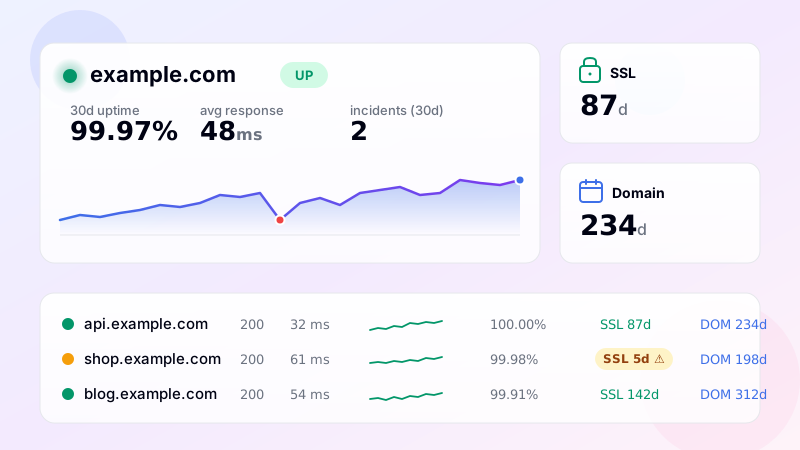
The "200 OK but broken" problem
Every uptime tool can tell you whether a server returned an HTTP 2xx code. That single signal looks reassuring, but it lies more often than you'd think. A homepage can render an empty white page and still return 200. A checkout page can quietly drop the "Buy now" button after a deploy and never throw an error. A WordPress install can replace its content with a "Database connection error" message - rendered, of course, as 200 OK with a real HTML page.
Keyword monitoring patches this blind spot. You tell the monitor what the page should contain - or what it shouldn't - and on every check the response body is searched for that string. If the keyword is missing (when it should be present) or present (when it should be absent), the monitor reports failure even though HTTP-wise the server looks fine.
What kinds of strings to monitor
The right keyword is something that proves the critical part of the page rendered correctly. A few examples:
- Ecommerce homepage: monitor for "Add to cart" or your most popular product name. If the catalog feed broke, the keyword disappears - and you know.
- Login page: monitor for "Sign in" or "Forgot password". If a JS error wipes the form, the keyword goes missing.
- Blog or news site: monitor for the title of the latest article. If your CMS started showing the previous day's content, the keyword no longer matches.
- Pricing page: monitor for the price string. A deploy that drops the price block becomes visible immediately.
- Status / health endpoint: monitor for "ok" or "healthy". If the upstream service is down, your status endpoint returns "degraded" - the keyword check fails.
You can also use absence mode - alerting if a string appears that shouldn't. Common cases: "Database connection error", "Whoops! Something went wrong", "Maintenance mode", "Fatal error", "Coming soon" (after a redeploy). If any of those leak into production, you get paged.
How the check works
The monitor performs a normal HTTP(S) GET (or any method you configure - POST, PUT, etc.), follows up to five redirects, fetches the response body and scans it case-insensitively for your keyword. Match status is recorded alongside HTTP code, response time and SSL info. If the configured condition fails twice in a row (the default confirmation period), an incident is opened and notifications are sent through your enabled channels - Email, Telegram, Slack, Discord and SMS.
For dynamic content like single-page apps where the keyword only appears after JavaScript runs, you'll want the multi-location premium feature, which uses a real headless browser via ScrapingBee to render the page first.
Combine with HTTP and SSL checks
A single keyword monitor in DiagnoSEO Uptime Monitoring also runs the full website check: HTTP code, response time, SSL certificate validity, domain expiration, DNS records and hosting detection. So one monitor protects you from the whole spectrum - server outages, certificate expiry, DNS hijacks and silent content failures.
Getting it set up
Open the tool, click "Add monitor", choose type "Keyword presence/absence", paste the URL, type the keyword, pick "must be present" or "must be absent", set an interval (1-30 minutes depending on your plan) and save. From the next cycle onward, the monitor watches that page and alerts you if the keyword goes missing - even if every other signal still says the site is up.
Frequently asked questions
-
The monitor fetches the response body and checks whether a specific string appears (present mode) or doesn't appear (absent mode). Use it to detect when a page changed content, an error message appeared, or a specific element was removed.
-
Both. The search is a substring match on the raw response body. You can match plain text ('Add to cart'), HTML fragments (
<button class="buy">), or specific attributes. Whatever appears verbatim in the HTML source can be matched. -
Diff tools compare against a baseline and report any change. Keyword monitoring is a targeted assertion — you specify what MUST be there (or MUST NOT). Diff is noisy on dynamic pages; keyword is precise about what matters.
-
Yes — use "absent" mode with a keyword like "Internal Server Error" or "Sorry, something went wrong". The monitor fails when the error text appears. Useful for catching 500-class errors that return HTTP 200 with an error page (a common framework misconfiguration).
-
By default no — the monitor fetches the raw HTML before JS executes. For SPA or JS-heavy pages, the keyword must appear in the initial HTML response (e.g. server-rendered, or in a
<noscript>block). Browser-rendered checks are a separate feature.
UptimeRobot · Pingdom · BetterStack · Oh Dear · Site24x7 · StatusCake · Sentry · Uptrends · Cronitor · New Relic
SSL monitoring · Domain expiry · DNS monitoring · Ping (ICMP) · Port (TCP) · Endpoint · API · Cron / Heartbeat · Response time · Backlink · Location-specific · Website monitoring